What do you need to make a spin wheel online?
A browser, and nothing else. A wheel here is a page, not an app: open it, type entries, spin. There is no account gate in front of the tool and nothing to install, and a finished wheel is a share link that carries the whole configuration — entries, odds, paint, even the pictures — to anyone you hand it to.
That is the practical difference from a slide-deck gadget or a downloaded app: the same wheel opens on the classroom machine, your phone and a borrowed laptop, because the wheel travels as a link rather than living in one installation.
How do you get your entries on it?
Type them as rows, or switch the list to its text view and paste the lot, one entry per line — a class register, a menu, forty exercise names arrive in one paste. Each entry can carry its own colour and its own weight, and on the picture wheel a photograph as well.
Duplicates fold into one segment with a count, so a pasted list with “Alex” three times becomes one Alex at triple width rather than three slivers. The rim stays readable to about ninety entries; past that, the list beside the wheel is the working copy and the wheel is the instrument.
How do you control what it draws?
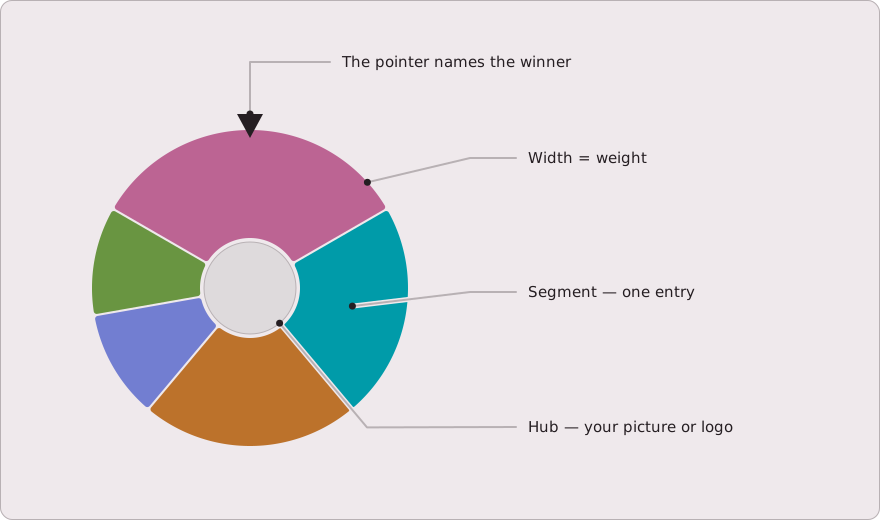
Two settings do most of the work. Weights make outcomes unequal on purpose — a prize wheel where the big prize is one chance in twenty, a drill where the hard question comes up twice as often — and the segments change width with the weights, so the odds are a visible picture rather than a claim.
Elimination mode removes each result as it is drawn: a running order, a no-repeats giveaway, a bingo call. Normal mode puts the winner back: a probability lesson, a challenge wheel. Everything else — spin length, easing, sound — is pacing, and none of it changes how the draw is made.
How do you make it look like yours?
Nine machines from chalkboard to neon, six palettes, per-entry colours, and pointers you can swap and scale. A wheel watched from the back of a classroom wants the high-contrast palette; a wheel on a party screen can afford the carnival. None of it is locked behind anything.
Pictures go three places: across the whole face, in the hub cap — your logo, if the wheel fronts a stand — and on individual segments. A picture you add is resized in your browser and stored inside the wheel itself; it is never uploaded unless you press Share, and the control says so before you do.
PowerPoint, OBS, classroom boards — how do you put it where you need it?
For a slide deck or a stream, the embed view: add ?embed=1 to the wheel’s link and it renders the machine and the result alone, sized to its box, with &bg=transparent if the scene behind should show through. A browser source in OBS and an iframe in a slide tool take the same URL.
For a classroom board, fullscreen does it with no setup — the wheel and the result fill the screen, and Escape brings the page back. The tool caches itself after the first visit, so the wheel keeps working when the venue wifi does not, which is the reason people used to reach for the paper version.
Make a custom wheel in five steps
Keep reading, or start building
The online raffle guide puts a wheel like this in front of an audience with money on the line, and the quiz night guide builds an evening around two of them.
The prize wheel is the classic custom build — your prizes, your odds, visibly unequal. For a wheel whose entries are pictures rather than words, start from the picture wheel.